Start chat
Start chat

Yanis
Welcome to Sparrow,
Do you have any questions? We would be happy to chat with you!
Start chat
Start chat
Welcome to Sparrow,
Do you have any questions? We would be happy to chat with you!

WhatsApp Business step-by-step onboarding
This step-by-step guide walks you through the whole WhatsApp Business onboarding process.
Sign up for WhatsApp Business. We will qualify your application and send it to WhatsApp for approval. You can track the status of your request in your Sparrow dashboard.
During the flow, you will be asked for your Facebook Business ID. Please follow these steps to find your Facebook Business ID - we will also email it to you when you reach this step:
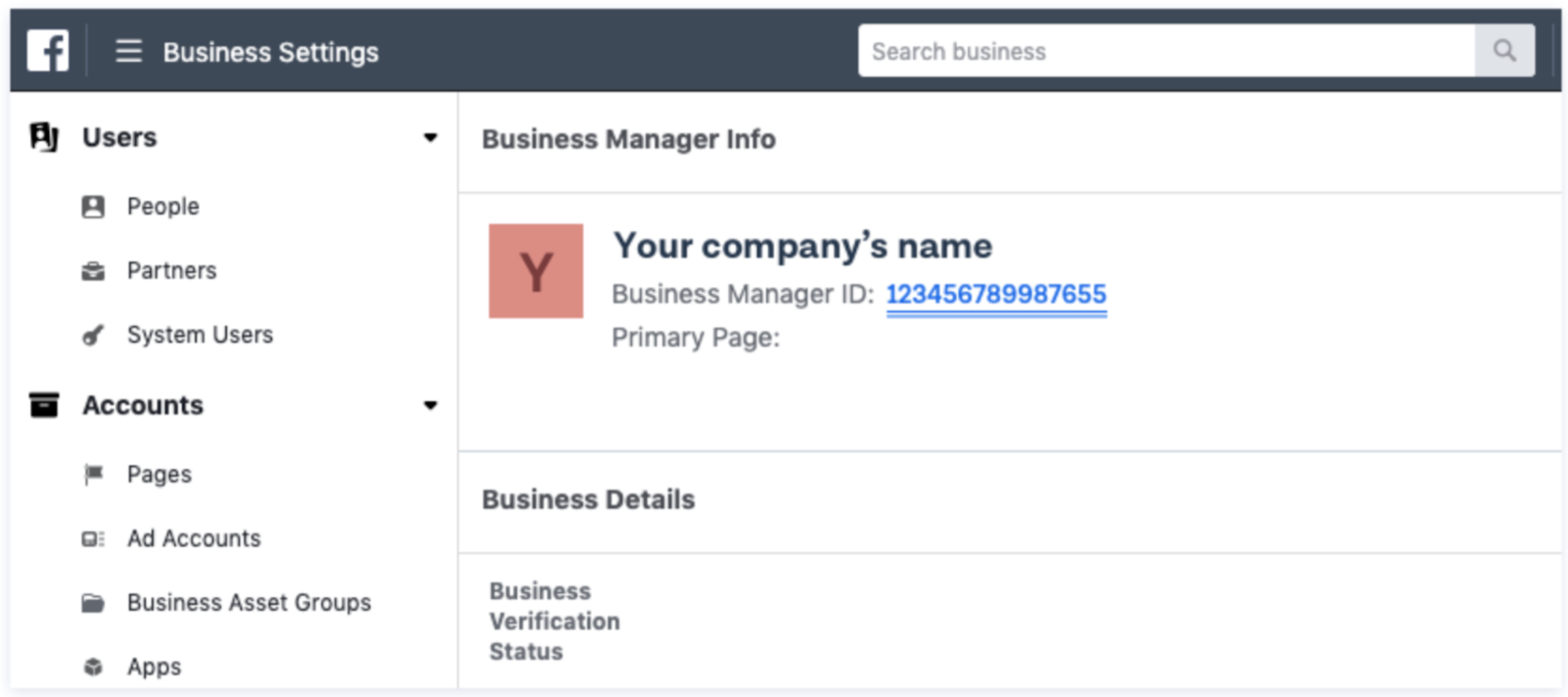
If you don't have a Facebook Business account yet, you can sign up athttps://business.facebook.com/
Once your WhatsApp Business sign-up is complete, you will receive an email from our Customer Success team asking you to accept WhatsApp via Facebook and verify your business:
Accept
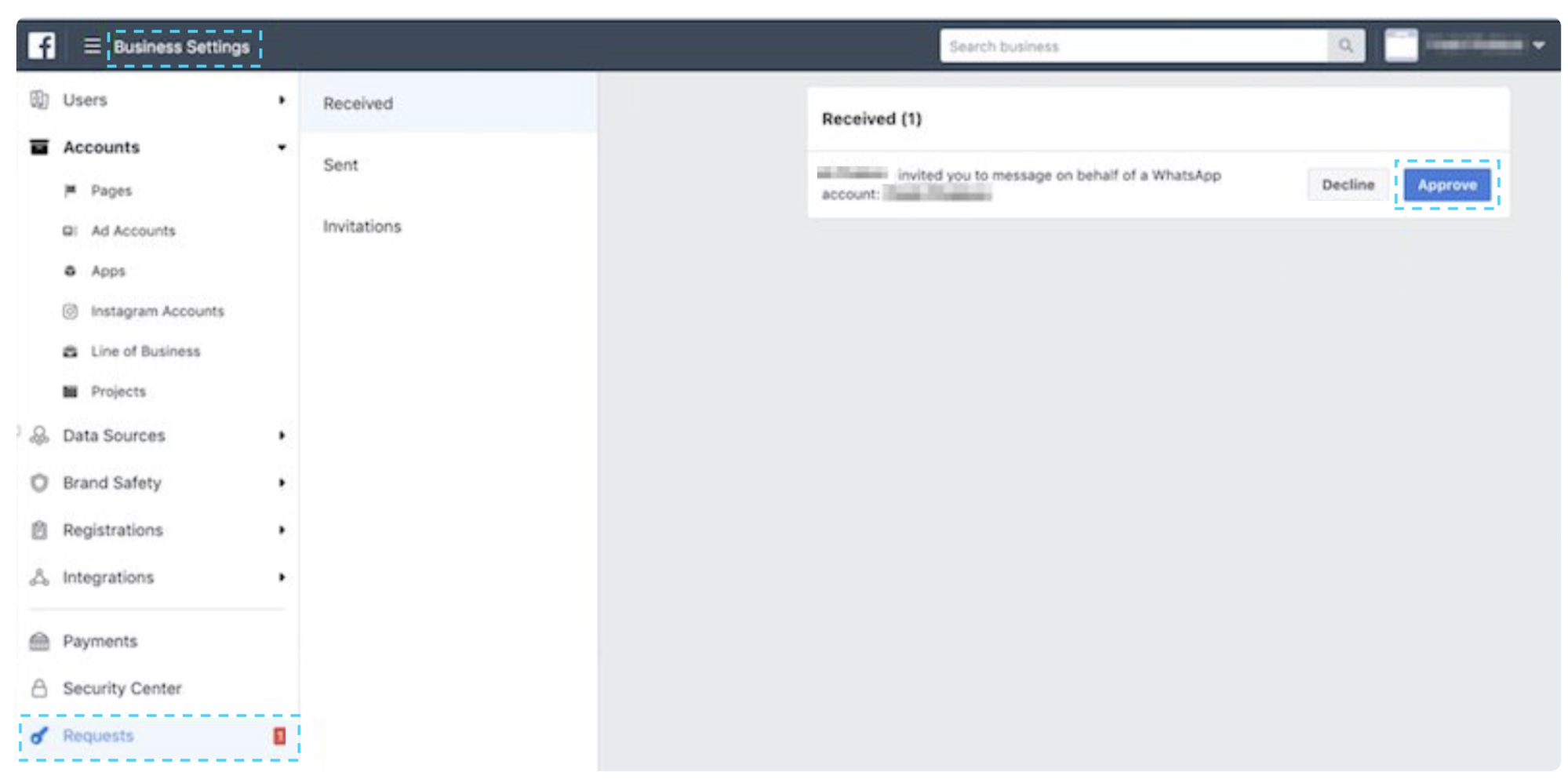
Verify
After accepting the invitation, please make sure yourFacebook business is verified. If your business has already been verified, you can skip this step; otherwise, please pay close attention to Facebook's instructions toverify your business .
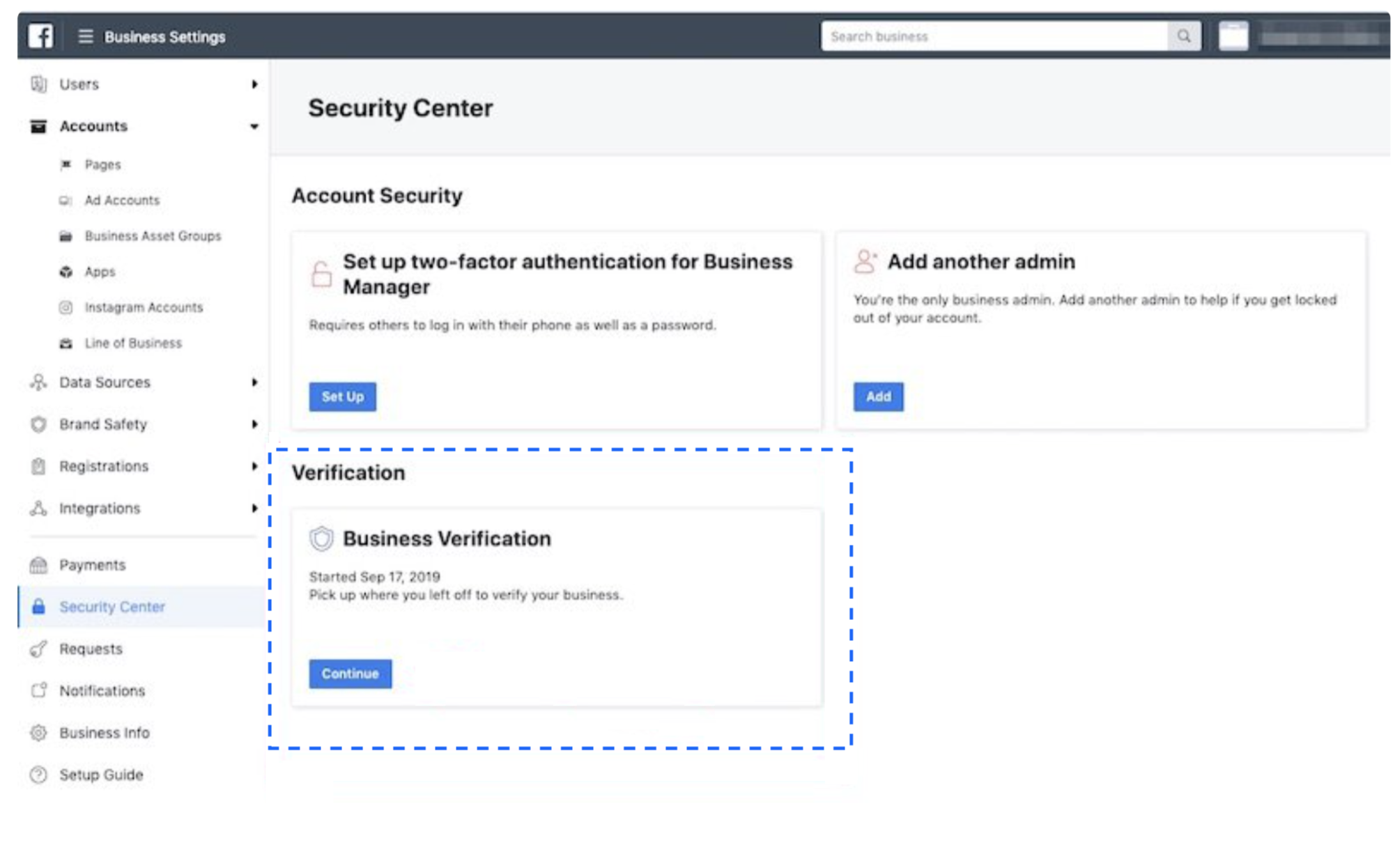
Please note that the verification decision is entirely at Facebook's discretion.
Once your Facebook Business profile has been successfully verified, your request will be sent to WhatsApp for approval.
As soon as WhatsApp approves your application, our Customer Success team will contact you to connect the number you will use for WhatsApp. This will be the number customers can reach you on and from which you can send WhatsApp messages.
You can use one of Sparrow's free virtual mobile numbers (VMN) or one of your current phone numbers:
Each number needs a “display name”. This is the name your customers will see, which can be found in your business information on WhatsApp and cannot be changed once activated. Please seeFacebook's guidelines for display names .
You will receive an email from our Customer Success team telling you when your channel is ready to be activated. Go toChannelsin the left sidebar of your Sparrow dashboard, clickWhatsAppand find your very first WhatsApp channel. You should see "Activate channel" as a green button. To activate the channel, a verification code will be sent to your WhatsApp number:
ClickActivate channel, request the code by SMS or phone call and enter it in the field on the right.
If the status shows "Pending", wait 10 minutes and refresh the page. Please reply to the Customer Success team's thread if the status has not changed after more than 30 minutes.
Once the number is activated, you are ready to start using our WhatsApp Business. So how can you start using WhatsApp? You can use it either:
To reach your customers, you need a pre-approved message template. Your plan already includes a number of free message templates. You can submit message templates through the WhatsApp template manager in the Sparrow dashboard. Once your message template has been approved, it can no longer be changed; however, you can add new templates at any time.